4. Clone the project
- the Project creator can clone at any time its own project,
- a Researcher user can clone a published project.
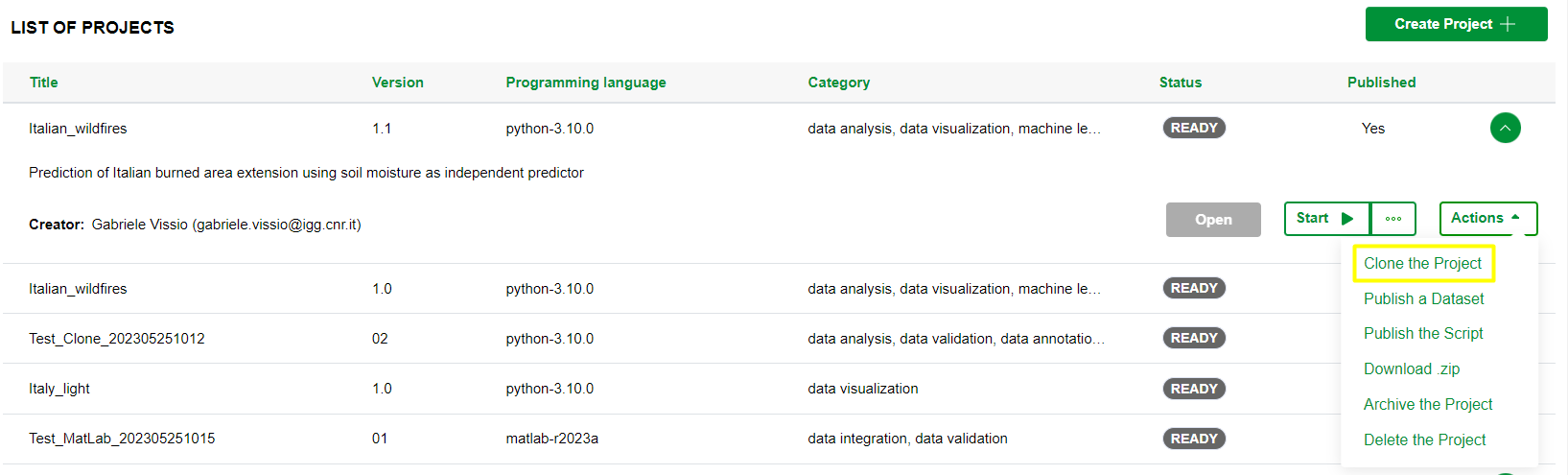
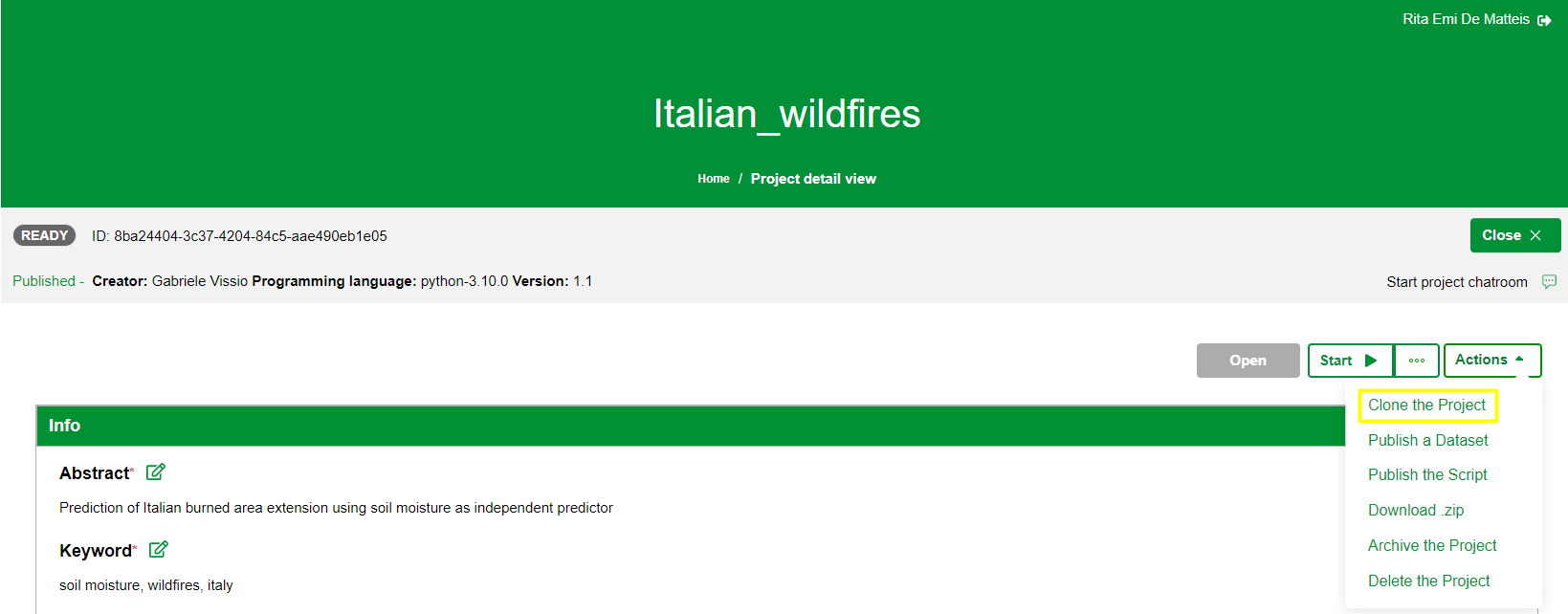
To start the cloning of a project you need to click on the Actions menu in the Dashboard or in the Project details view as shown in the images below:
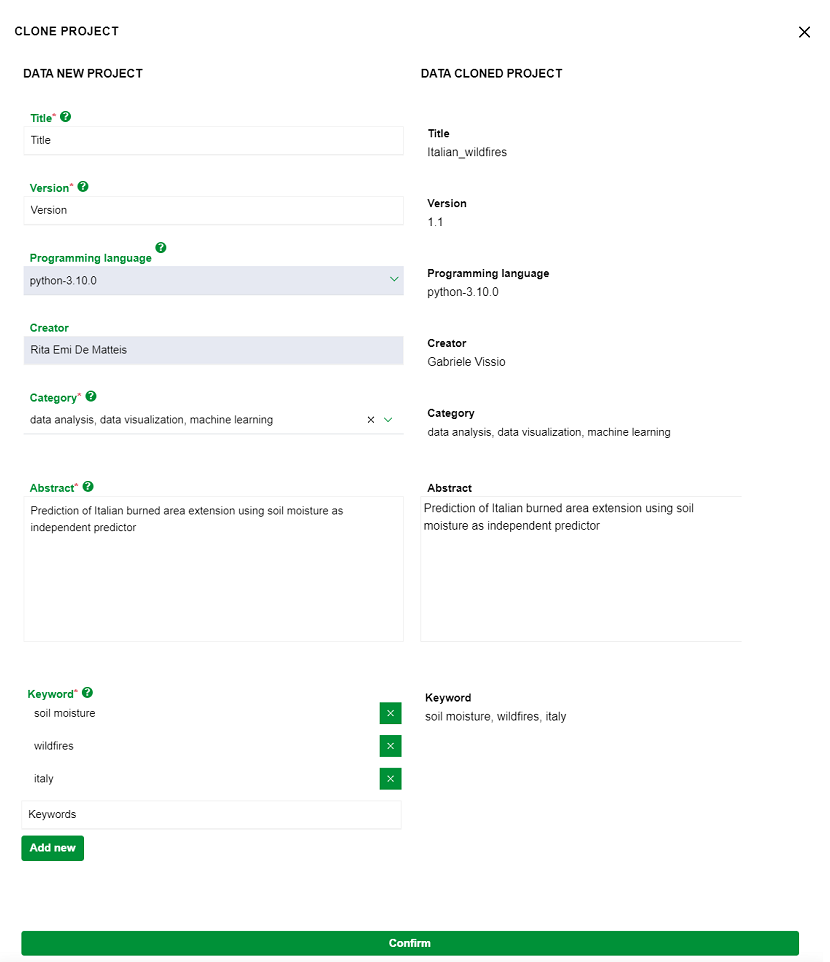
After click, the system shows a form like to the project creation's one which reports on the right the data cloned project and requires on the left a confirmation and/or data entry of the new project that you are creating; in particular:
- Title: mandatory field that identifies the name to assign to the new project
- Version: mandatory field that identifies the version to assign to the new project
- Programming Language: text field filled in (not editable) with the same value of the cloned project
- Creator: pre-filled text field (not editable) with the name of the user logged that is creating the new project
- Category: mandatory multi-value field that requires the confirmation and/or data entry of more categories of membership for the new project
- Abstract: pre-filled mandatory text field containing the data cloned project that you can edit
If data is not correctly inserted, the system shows a specific validation error for each field; in particular for the Title field:
- the string must begin with at least one letter, from a to z, in uppercase or lowercase
- the string must have at least 2 characters
- the string must not have more than 40 characters
-
it is not allowed to enter:
- whitespaces
- special characters such as !@#$%^&*()+={}[]|\:;"'<,>.?/~`
- _ and - as last character
- it is allowed to enter:
- numeric characters
- _ and - (but not as a last character)
for the Version field:
- the string must begin with at least one alphanumeric character, in uppercase or lowercase
- the string must have at least 2 characters
- the string must not have more than 20 characters
-
it is not allowed to enter:
- whitespaces
- special characters !@#$%^&*()+={}[]|\:;"'<,>?/~`
- _ - . consecutive and/or as last character
-
it is allowed to enter:
- numeric characters
- _ - . (but not consecutive and/or as last character)
for the Abstract field:
- the string must begin with alphanumeric character, in uppercase or lowercase
-
it is not allowed to enter as first character:
- whitespace
- special characters: !@#$%^&*()_+={}[]|\:;"'<,>.?/~`
for the Keyword field:
- the string must begin with alphanumeric character, in uppercase or lowercase
-
it is not allowed to enter as first character:
- whitespace
- special characters: !@#$%^&*()_+={}[]|\:;"'<,>.?/~`
After click, another error message can be shown if another project already exists with the same attributes relating to Title and Version; in this case it is sufficient to enter different values than what is already present and then click on Confirm.
At the end of the procedure the system generates:
- a new project (record), visible to the user within the project dashboard
- a project on Gitlab environment based on the type of programming language and its version chosen
- the provision of an Integrated Development Environment with its resources
- an update of the Provenance graph for both projects involved
- an email notification to Project Creator and Administrator to inform them of the event.