3. Service details
To access the Service details section, you need to click on the relevant record within the List of Services.
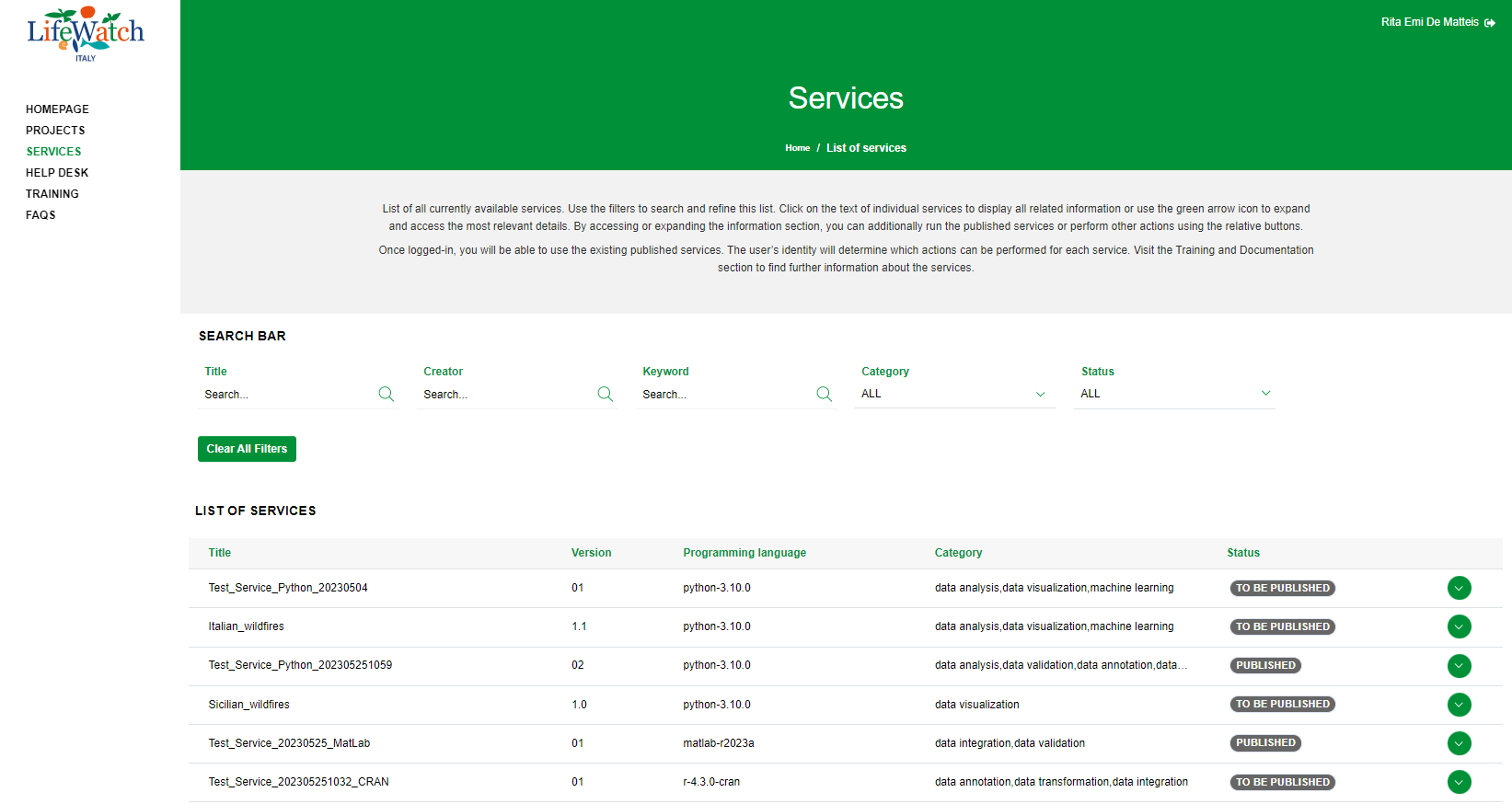
The page is organized into two main areas, Header and Content.
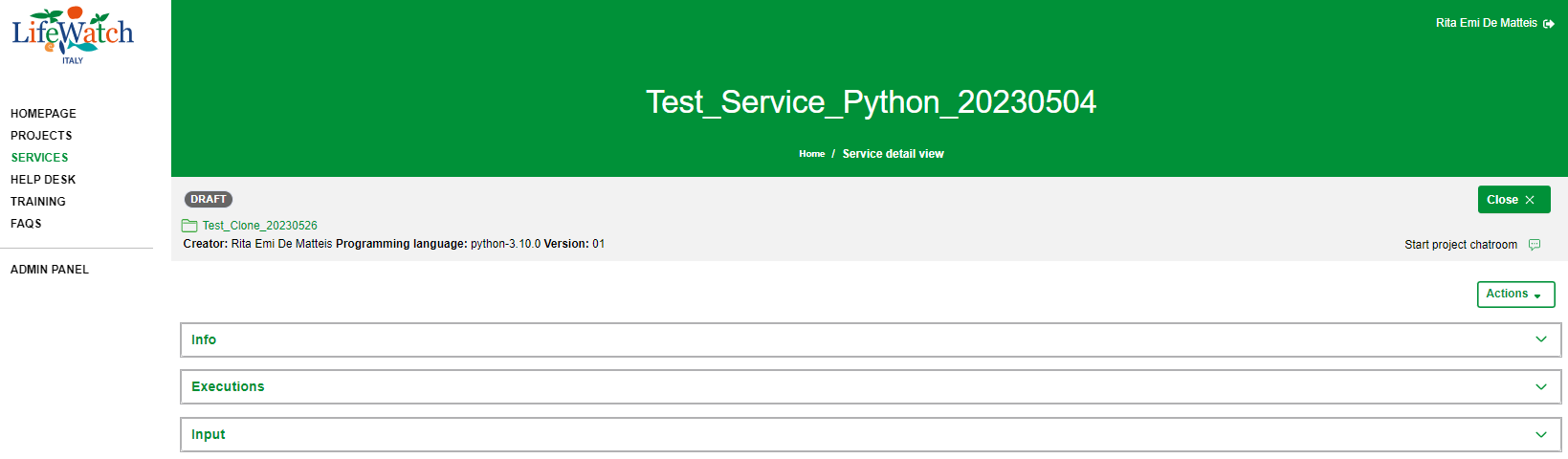
About to the Header, the data are arranged into three different bars:
- Login/logout button
- Username (if the user is logged in)
- Service Information bar and
- Actions bar
while the Content contains the following information:
- Info
- Executions
- Input
- Metadata
All details are described in the next paragraphs.
3.1 Service information bar
The service information bar is always visible in all pages relating to the services and contains the following data:
- the name of the service
- the breadcrumb
- the status of the service
- the reference to the relevant project
- the name of the user who created it
- the programming language
- the version of the service
- the access to the chat service associated to the project linked to the service.

3.2 Actions bar
As already mentioned, the action bar collects all actions available for the service depending on the user’s role.

In particular, it needs a click on the:
- Actions drop down menu to:
- publish a dataset through the "Publish a Dataset" item,
- publish the service using the "Publish the Service" item
- Download .zip containing the files associated
- Delete the service.
All the actions are available for the Project creator, Administrator; instead the download of a zip file is always available for a published service and to all users authenticated and not.
All details about the feature are described in the related paragraphs.
3.3 Info
In addition to the fields already described, in the "Info" section are also shown the data referring to:
- Training resource: it is a text field that can contain a web link to a specific section defined externally to the platform and accessible within the LifeWatch Training platform;
- Working Group: it is a text field that can contain a web link to a section that the Project creator has previously created within the LifeWatch Community;
- Help Desk topic: it is a text field that can contain a web link to a specific section defined externally to the platform and accessible within the Help Desk platform;
Please note that:
- all three fields are optional
-
the string must respect the URL standards, such as:
- it must begin with protocol: HTTP(S) o FTP(S)
- it must have the domain
- they are editable until the related service is published.
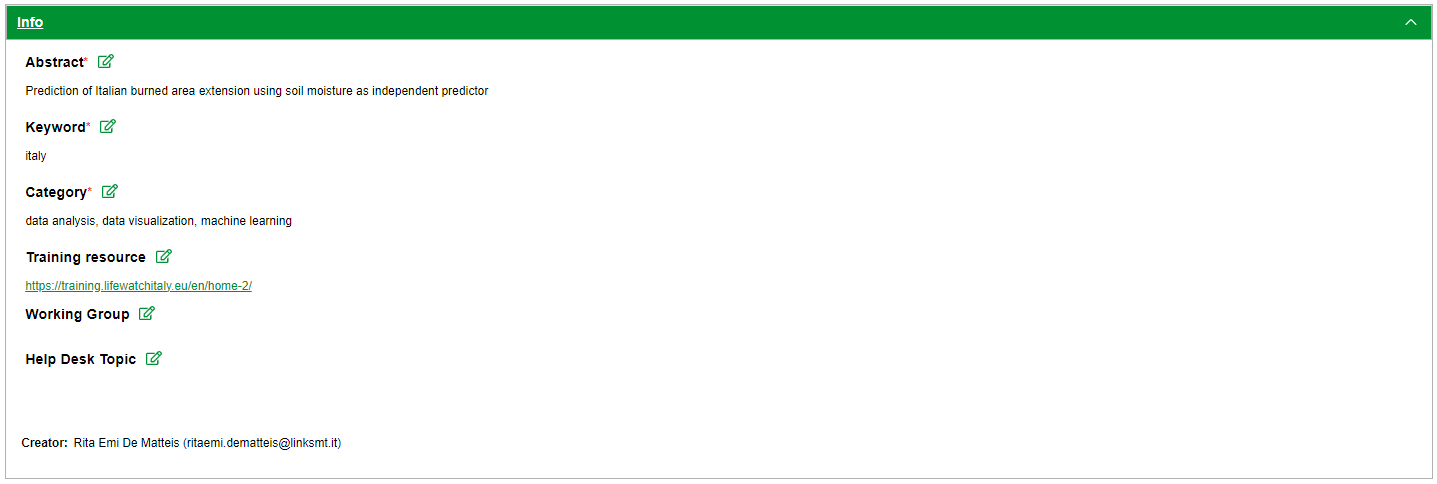
To edit the data, it is need:
1. click on the appropriate service record to edit within the List of Services
2. then on the Pencil icon
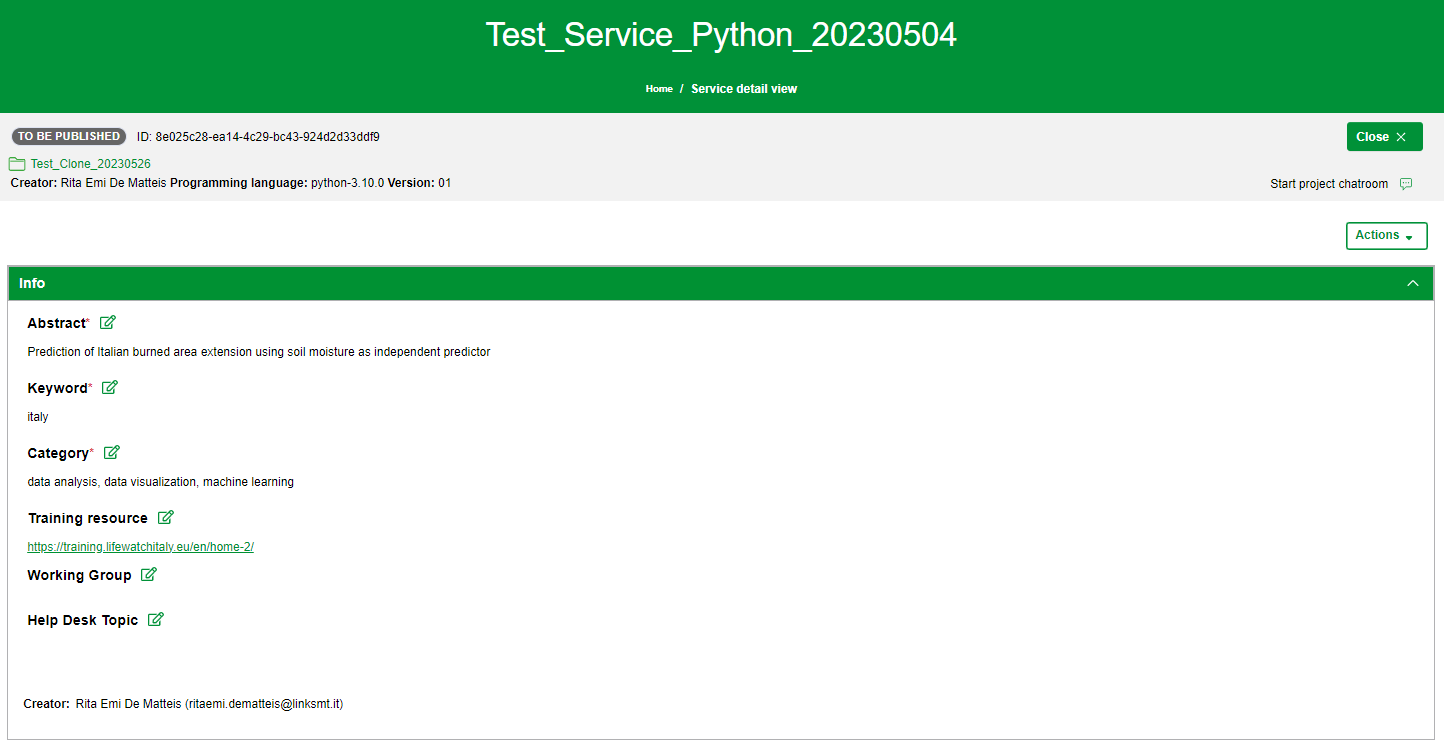
3. when you are finished editing your data, click on the Save button

Please note: these data are editable only for Project creator and Administrator until the service is not published.
3.4 Executions
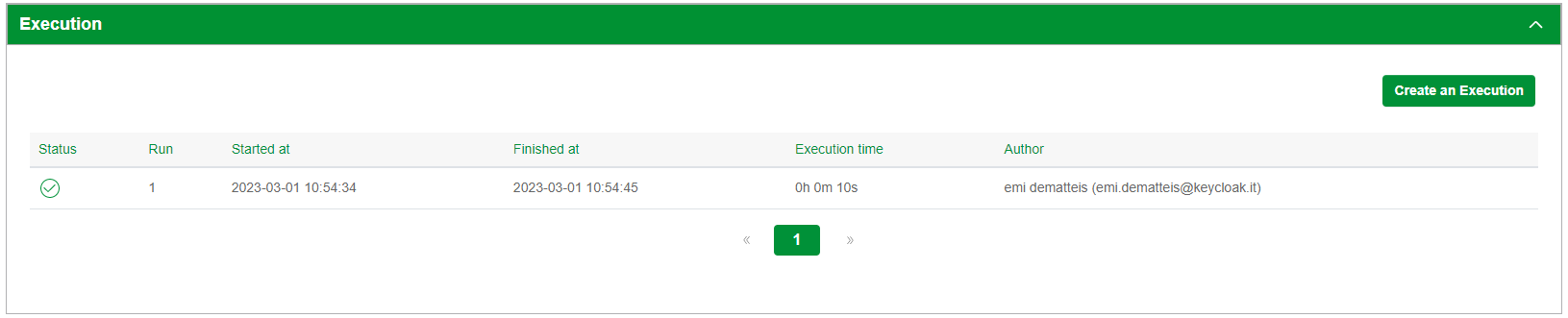
This accordion shows the list of all executions launched for the selected service. Within the accordion there are:
- the Create an Execution button; for futher details please refer to the relevant paragraph
-
a table that lists the executions launched and with the following information:
- Status: it is an icon that represents the status of execution; it will be green if the execution is successfully completed, otherwise it will be red
- Run: it indicates the number of executions
- Started at: it indicates the start date and time
- Finished at: it indicates the finish date and time
- Execution time: it indicates the time of execution
- Author: it indicates the user who launched the execution
3.5 Input
This section shows the input datasets that have been associated with the project and that the system needs to use to automatically run the service, that is, when the user generates an execution without specifying a new input datasets.
In fact, the system uses them both for the launch of the first execution, both if the user will click Start directly from the List of Services. In this section you can see the following information:
- Name: field that contains the name of the input file
- Source: field that contains the source of the input file (Local or Data Portal)
- Size: field that contains the size of the input file
- Date: field that contains the date of input file upload
- Action: field that contains the publish button only if the input file was uploaded from local

Please note that, the Project Creator can modify the related project if the service and/or script has not been published. Specifically, he can:
- Edit the script and/or
- Add/Remove input files
The system:
- generates a notification mail to the Project Creator informing him that the service is misaligned with its project
- when the user tries to perform any action on the misaligned service, it will show a pop-up through which you can refresh the service clicking on Refresh the Service button.
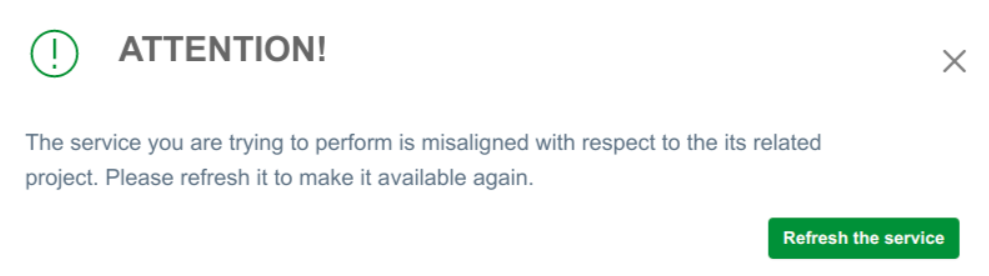
After clicking on the Refresh the Service button:
- a new execution is automatically generated
- the service is moved in "Draft" status until the new first execution is finished
3.6 Metadata
In this section you can see all the metadata related to the published resources. To access to Metadata section, it is needed:
1. click on the appropriate project record within the List of Service
2. click on the Collapse icon to open the Metadata accordion
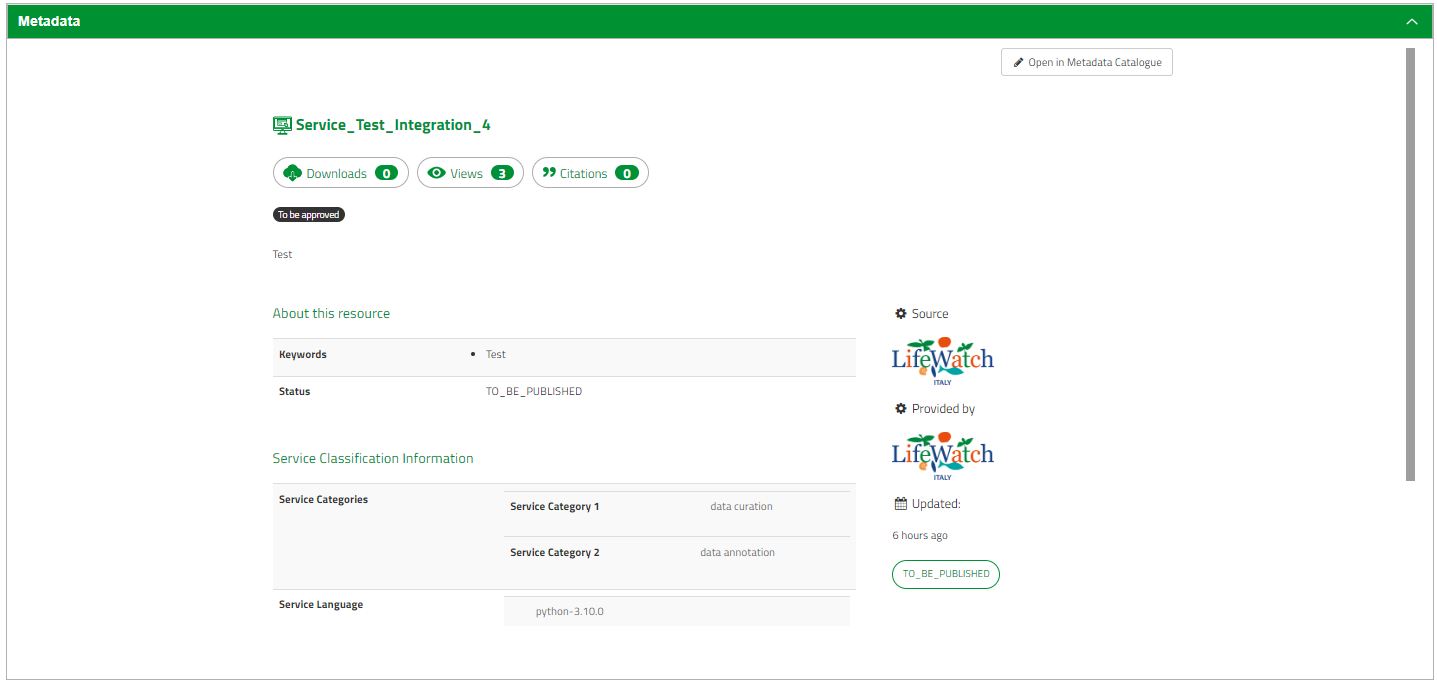
Please note: this section is available only if the script and/or the service have been published in the Metadata Catalogue.