6. Launch a new execution
To launch a new execution from Service details view, you need to:
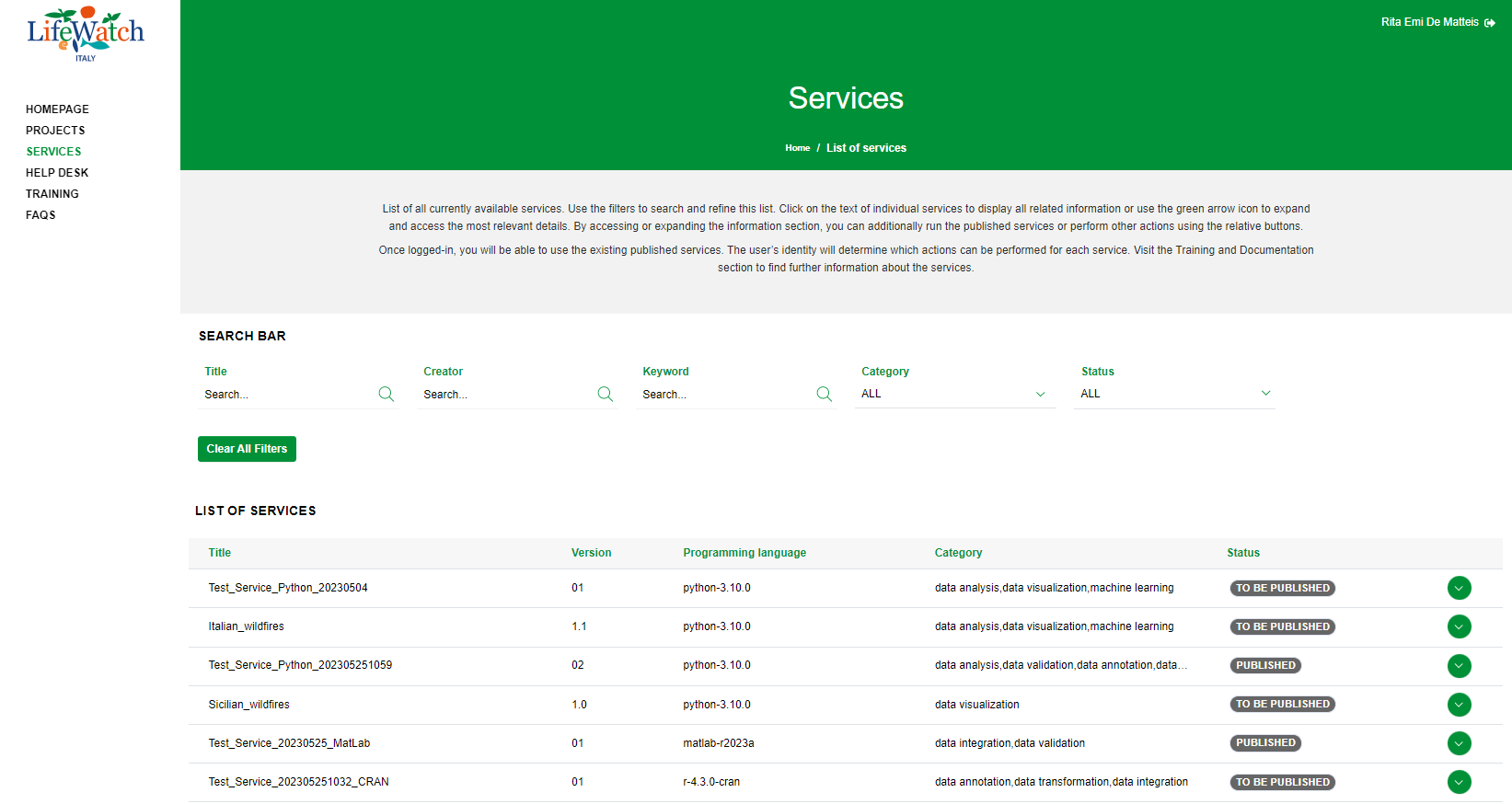
1. click on the appropriate service record within the List of Services
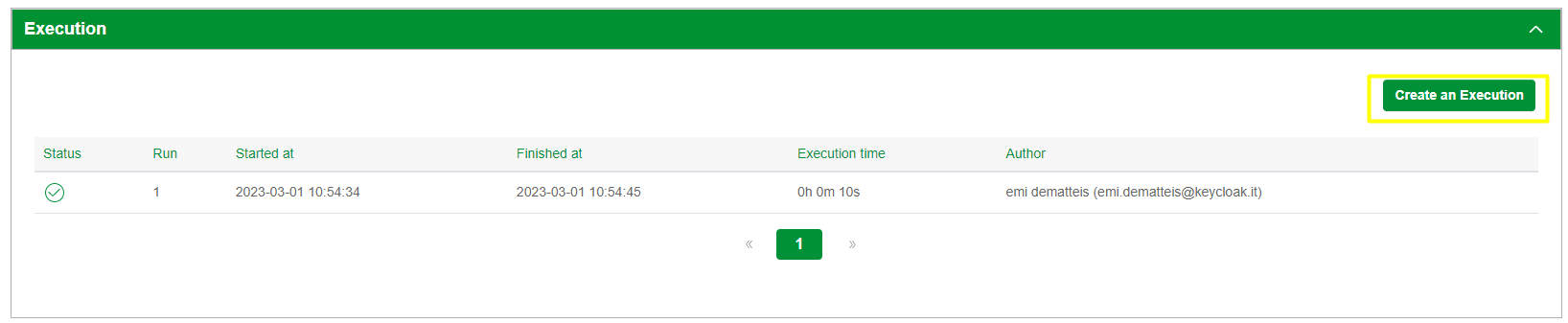
2. click on the Collapse icon to open the Execution accordion

3. click on the Create an Execution button
4. after click on Create an Execution button, the system show the detail view of the new generated execution; please note that the execution is generated with "Wait" status
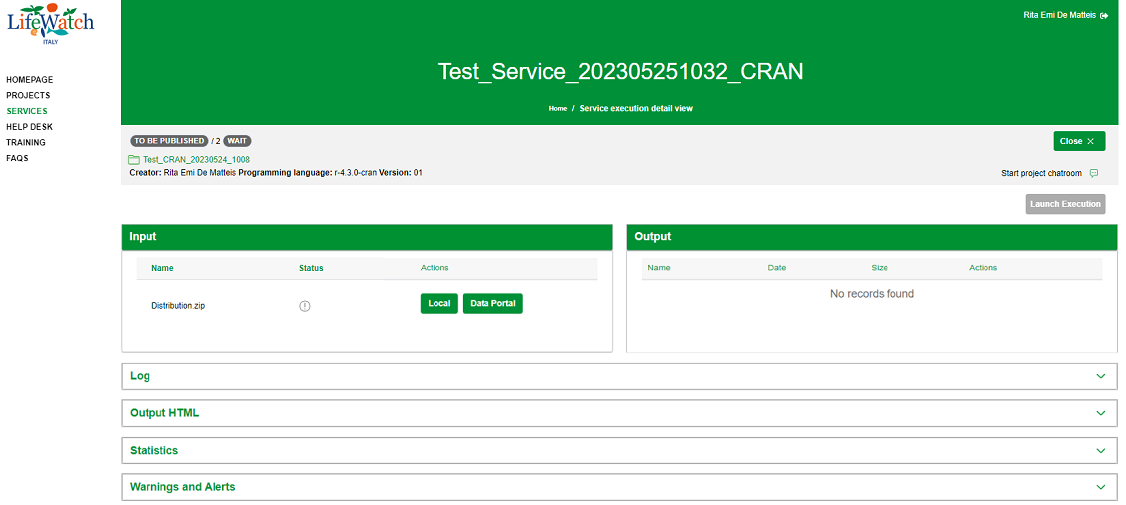
For more information about this view, please refer to the "Execution details" paragraph.
5. To launch the execution, you have to upload the input file within the input accordion; you can upload a file from Local or Data Portal
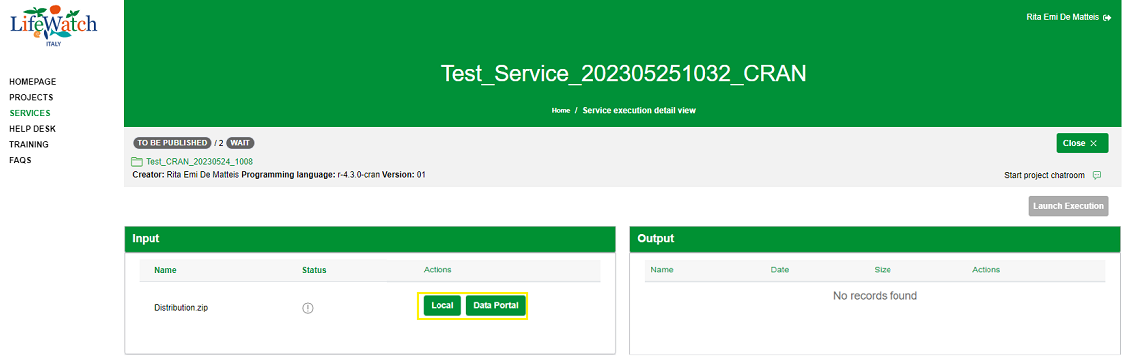
If the upload is successfully completed, a green icon will appear next to the uploaded input file; otherwise a red icon will appear. Please note that execution can be launched only if all the expected input files have been uploaded correctly.
6. As mentioned before, if the upload of the expected input files is successfully completed, the system allow you to click on Launch Execution button
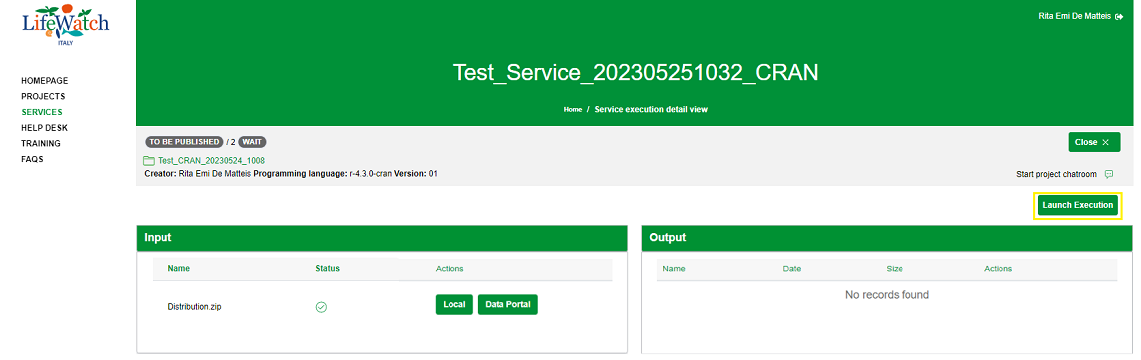
After the launch of the execution, the system updates its status that is:
- Running if the execution is still running
- Completed if the execution is successfully completed
- Failed if the execution is unsuccessfully completed
Please consider that:
- a new execution can be launched only if the first execution is finished
- if the service is not published, a new execution can only be launched by Project creator, Administrator and Reviewer
- if the service is published, a new execution can also be launched by a Researcher
At the end of the procedure the system generates:
- a new execution (record) the execution accordion in the Service details view
- for the generated execution, the output file(s) (if generated)
- for the generated execution, logs, statistics, warnings and alerts (if generated).